Help Center
Genealogical Data Analysis main window
The Genealogical Data Analysis main window appears when the application is launched.
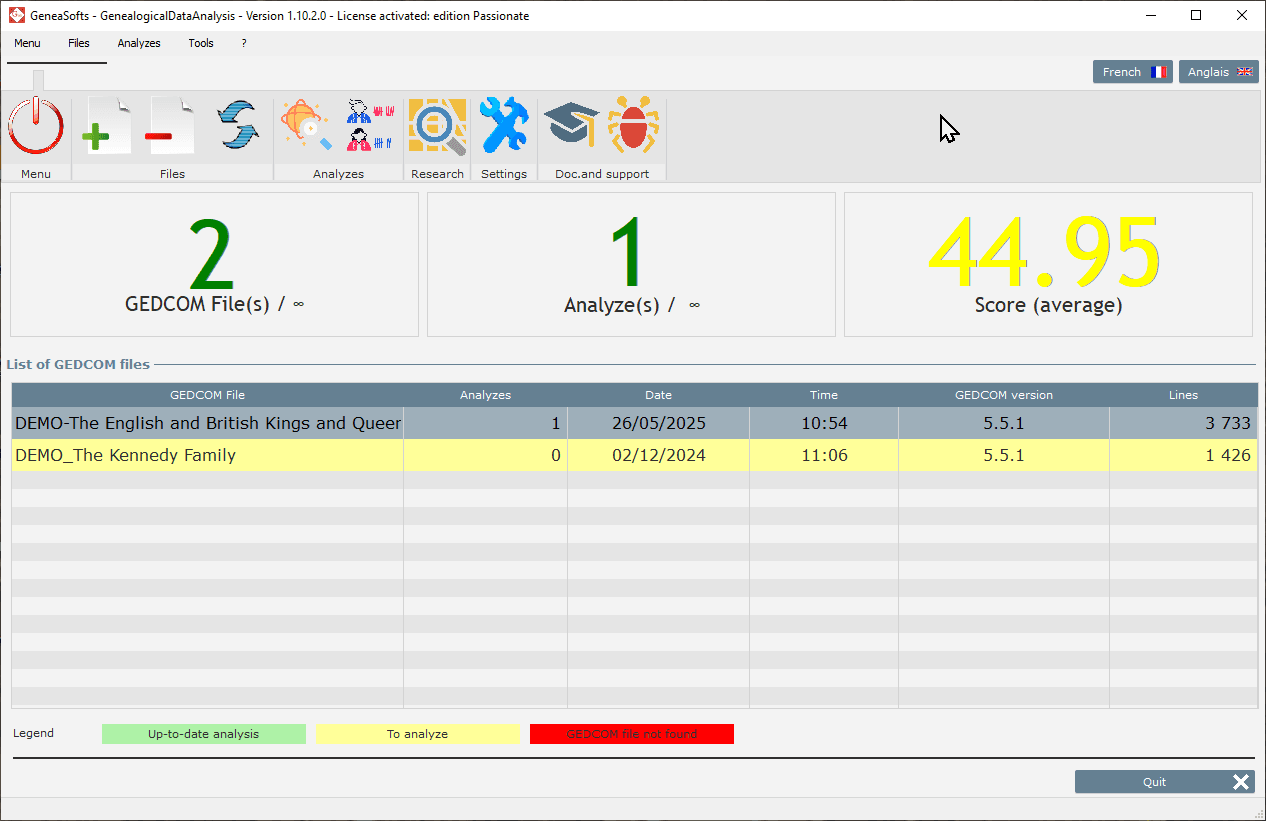
From this window you can :
- manage tracked GEDCOM files (add or remove files),
- find out if GEDCOM files have been updated since their last analysis,
- analyze GEDCOM files,
- consult the analyses performed,
- searches for duplicates, ascendants, descendants and isolated individuals,
- use the search wizard,
- access options and tools,
- consult this documentation,
- report an anomaly.
This window includes :
- a banner with buttons for the main possible actions,
- a “dashboard” with three indicators,
- and a list of tracked files.
Button banner

The buttons displayed allow you to perform an action:
 | Exits the application. |
 | Adds a GEDCOM file to the list of tracked files. |
 | Removes a GEDCOM file from the list of tracked files. The file must first be selected from the list. |
 | Allows you to analyze a GEDCOM file. The file must first be selected from the list. |
 | Displays the list of analyses for the GEDCOM file. The file must first be selected from the list. |
 | Displays the list of searches for the GEDCOM file. The file must first be selected from the list. |
 | Displays the options window. |
 | Displays the application documentation in your browser. Internet connection required. |
 | Opens a ticket on the site in your browser. Internet connection required. |
Two additional buttons allow you to select the application language:

The dashboard

Genealogical Data Analysis displays three indicators:
- the number of GEDCOM files present in the list of monitored files,
- the number of analyses present,
- the average score obtained.
These indicators are recalculated each time a file is added or removed, and for each new or deleted analysis.
The indicators show the maximum number of files that can be tracked and the maximum number of scans that can be performed.
List of files
Genealogical Data Analysis displays the list of GEDCOM files to be tracked, with :
- the file name,
- the number of analyses performed on this file,
- the date and time of the last analysis (or the date and time the file was added if no analysis has been performed),
- the file’s GEDCOM standard,
- the number of lines read from the GEDCOM file.
Remarque
The GEDCOM standard indicated is the one used by the application that produced the file.
The list of tracked GEDCOM files displayed in the main window uses the following color code:
- If a GEDCOM file has been modified (since its last analysis), it appears on a green background.
- If a GEDCOM file has not been analyzed, it appears on a yellow background.
- If a GEDCOM file is missing, it appears on a red background.
Remarque
If the GEDCOM file has been deleted or renamed or moved, it will be considered missing. Genealogical Data Analysis does not delete or modify files.