GEDCOM file management
Genealogical Data Analysis analyzes your genealogy data exported in GEDCOM format from your genealogy application.
Export your data in GEDCOM format
Genealogical Data Analysis does not read data directly into your genealogy software (or website). You must therefore start by exporting your data in GEDCOM format.
Add a GEDCOM file to your list of files to be analyzed
You can add a single GEDCOM file or all the GEDCOM files in a directory.
Add a single GEDCOM file
To add a GEDCOM file to the list of monitored GEDCOM files, open the Genealogical Data Analysis main window and select :
- either use the “Files” menu / “Add a GEDCOM file” option;
- or use the
 button on the banner;
 - or right-click on the list and select the “Add GEDCOM file” option.
 button on the banner;
The GEDCOM file selection window appears:
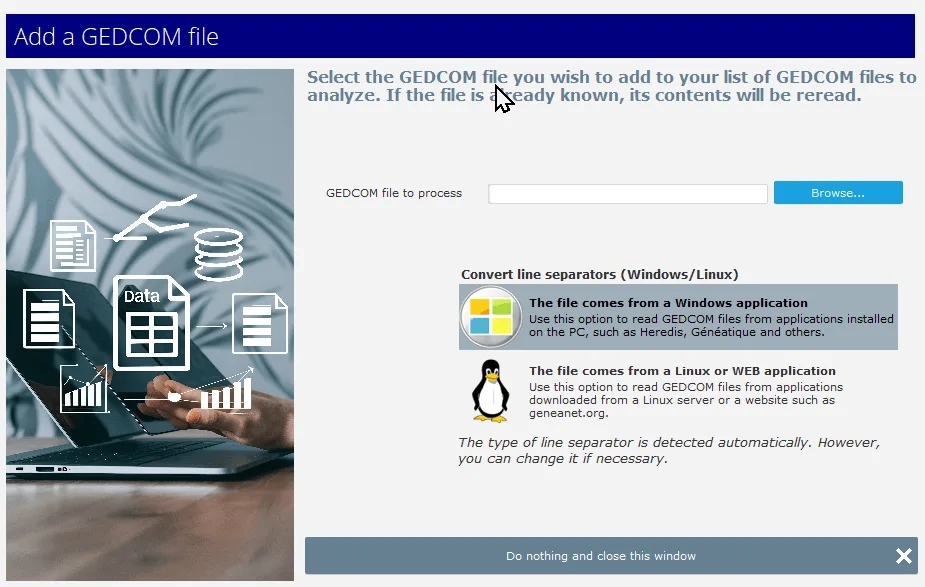
To add a GEDCOM file :
- Browse for the file using the [Browse…] button
- Select the file and confirm with the [Add selected GEDCOM file] button
The file is added to the list.
Add all GEDCOM files from a directory
You can also add all the files present in a directory (and its subdirectories).
- Display the application options window and select the “GEDCOM files” tab.
- Select the option “Add GEDCOM files automatically when the application is launched”
- Select the directory to be read.
- Check the “Search also in subdirectories” option if required.
- Save these options.
The next time the application is launched, Genealogical Data Analysis will search for the files and add them automatically. Genealogical Data Analysis will not modify files already in the list of tracked files.
Search for updated GEDCOM files
Genealogical Data Analysis can check whether GEDCOM files have been updated since their last analysis, and tell you which files need to be analyzed again.
This verification can be done :
- on request (manually),
- or automatically, when the application is launched.
Manually check if GEDCOM files have been modified
To manually check whether GEDCOM files have been updated :
- Display the Genealogical Data Analysis main window.
- Use the banner button:
 .
.
 .
.Automatically check if GEDCOM files have been modified when launching the application
To enable this feature, you need to modify the options :
- Display the application options window and select the “GEDCOM files” tab.
- Select the “Automatically check if GEDCOM files have been modified when launching the application” option.
- Save these options.
Genealogical Data Analysis will perform the check the next time the application is launched.
Removing a GEDCOM file
You can remove a GEDCOM file from the list of tracked files.
To remove a GEDCOM file from the list of tracked GEDCOM files, you need to display the Genealogical Data Analysis main window, then :
- either use the “Files” menu / “Remove a GEDCOM file” option;
- or use the
 button on the banner;
 - or right-click on the list and select the “Remove a GEDCOM file” option.
 button on the banner;
The GEDCOM removal window appears:
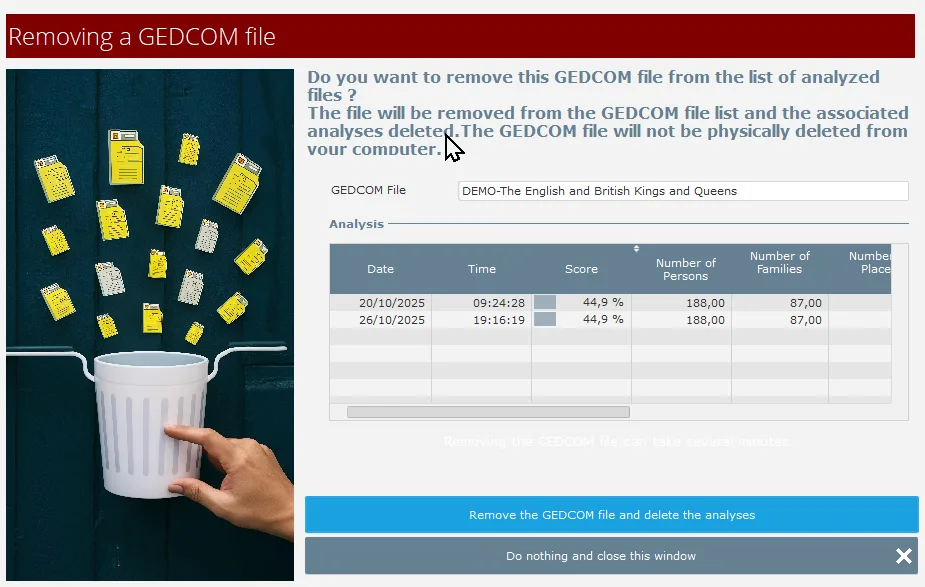
Confirm the action by clicking on the “Remove GEDCOM file and delete analyses” button
Wait for the message indicating that deletion is complete.